Showing posts with label Adobe Photoshop. Show all posts

Wednesday, 4 June 2014

Great Caldera Poster Map Finished

Close to a year of work on the Great Caldera's overview map came to a head last weekend, and the map is finally complete, and entering the pre-print stage.

Vicinity of Seahollow, capital city of the fellfolk nation of Belledor, Great Caldera, World of Calidar.  Topographical map.  Stereographic Projection.
The area around Belledor's capital.
Exciting times for me, as this will be the first map I've ever had printed.  

Meanwhile, Bruce has posted two articles previewing the maps.  Part one covers the southern realms of the Great Caldera, while part two deals with the northern half.   He mostly concentrates on giving some background to the labels he devised for each nation.  It's a great read, with some tantalising hints of what is to come, as well as some classic Heardian humour.

I'd like to add a few comments about the creation of the art featured on these maps.

First up is the Belledor fragment at the top right, which depicts the area around Belledor's capital, Seahollow, in the province of Seafolk.

Grimsvik is the capital city of Nordheim, and also regional capital of Steinfold, Nordheim's leading realm, in the Great Caldera, World of Calidar.  Topographical map.  Stereographic Projection.
Grimsvik, capital of Nordheim.
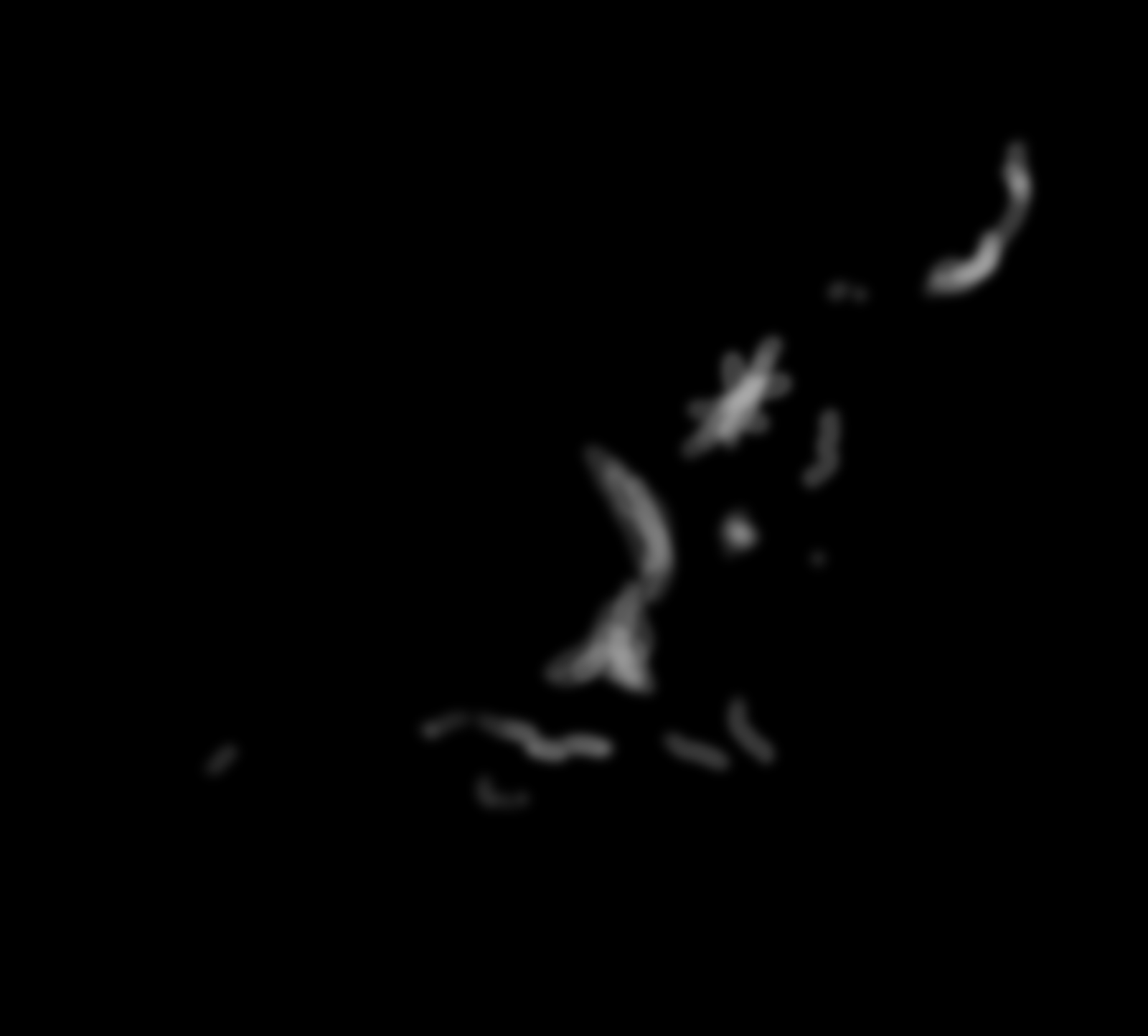
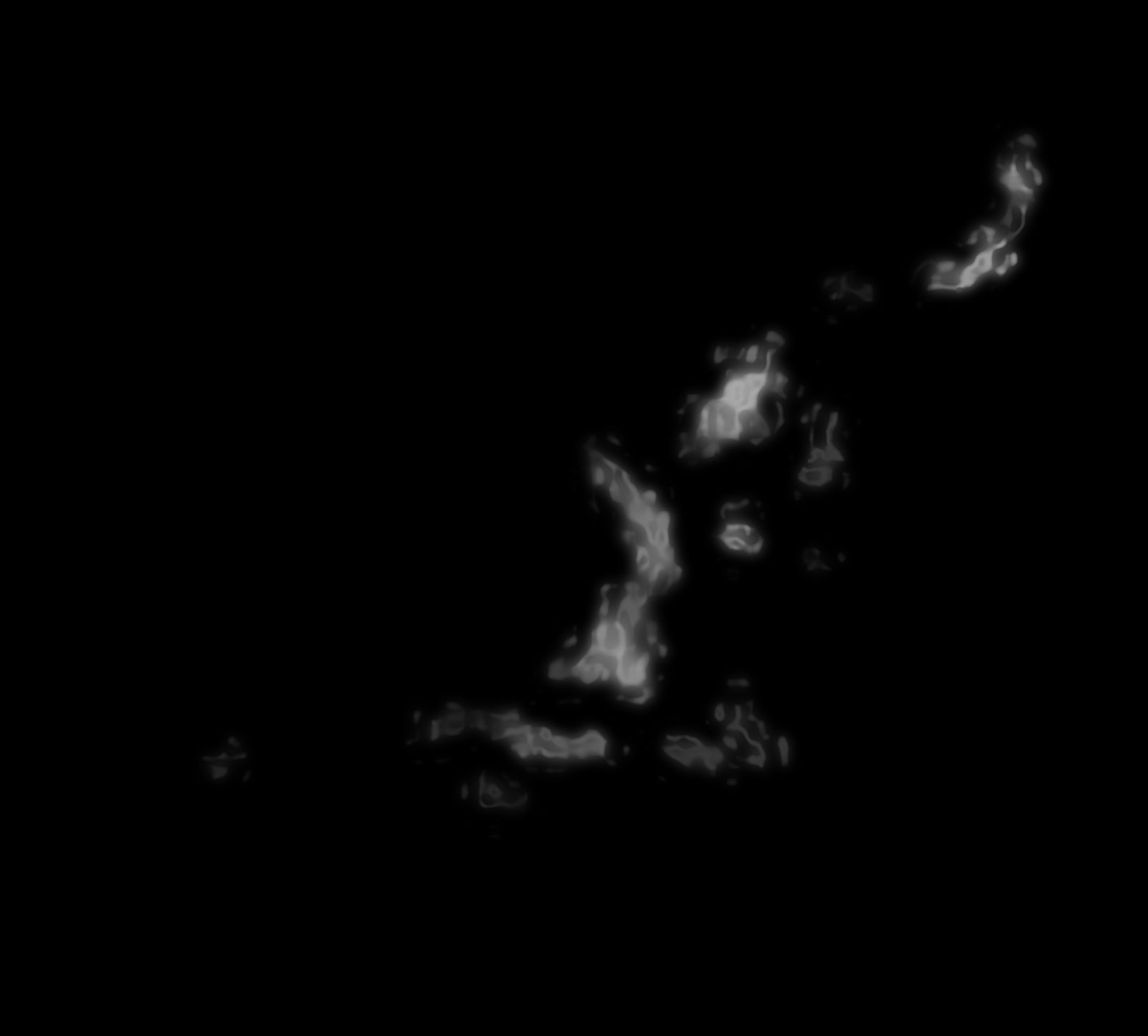
The map is composed of numerous layers, which all come together to produce the terrain you see here.  At the base of everything is the height map, which I have posted about extensively already.  Suffice it to say that this map took about six months to design and erode at full resolution.  It is a 3D model, with sculpted mountains and valleys, rolling hills, and rivers meandering through the plains.  On top of this is a gradient map, colouring the terrain based on elevation, so that the plains and lowlands are light green, the hills are tan, and the mountains are grey-brown.  There are actually five or six of these gradient maps, allowing the painting of other terrain types such as grasslands, desert, swamp, and taiga on top of the plains.

What this means is that you can tell the elevation of any particular spot just by looking at the colours, and on the height model I can measure the exact height of any point on the map if necessary.  Mountains named on the larger scale maps (such as the hex map) refer to actual peaks visible on this map.

Central area of wizarding realm Caldwen, including its capital, Arcanial, in the Great Caldera, World of Calidar.  Topographical map.  Stereographic Projection.
Central Caldwen.
Next come the sea and lake masks, and the rivers.  The sea is a simple mask derived from the base height map, coloured blue.  The rivers are also generated from the height map.  We decided on the general locations during the design process, and then let erosion create the exact shapes in a natural way.  For some areas — Alfdaín comes to mind — this took multiple attempts, and was a bit of a headache, but I'm very pleased with the final results.  Lakes were added to the height map after erosion; Bruce designed logical shapes that fit in with the river systems, and I dug them into the height map.

At this point, we haven't done any work on lake or sea beds.  That may come at some point in the future, but for now it's all just flat surfaces.

With the land and sea all done, the last three layer groups add lighting, texture, and overlays.  Lighting consists of a 3D render of the height model, which with transparency effects gives shape to the underlying terrain.  Texture is predominantly visible in the sea areas, and to a lesser extent on the land.  It is a parchment texture, designed to bring consistency to the map.  I chose not to also incorporate the colour of the parchment this time.

Mythuín, in the Matriarchy of Andolien, is the capital of the elven realm of Alfdaín, Great Caldera, World of Calidar.  Topographical map.  Stereographic Projection.
Alfdaín's capital, Mythuín.
Finally overlays refers to the graticule (the grid of latitude and longitude lines over the map), borders, roads, icons, scale, legend, and of course all the labels.  This layer sits on top of everything else.

I will post more about all of these things after the release.

For now, I am now putting all my efforts into the second poster map, the hex map of Meryath, which is also mostly done.  The finishing touches should be done by the end of the week.  After that, it's back to the internal maps.  These, too, are at an advanced stage of design.  Everything should come together within the next few weeks.  It will not be long now before you can hold the book and the maps in your hands.

A full view of the dwarven realm of Araldûr, Great Caldera, World of Calidar.  Topographical map.  Stereographic Projection.
Araldûr, home of the dwarves on Calidar.  This image shows almost exactly what the final map will look like.

Sunday, 23 February 2014

World-building: Building Base Height Fields


There are two stages to building a height map of your world: first you make the base height field, then you put it through the erosion process.  This article covers the first of these stages.  A separate article on erosion is also in the works.


Thorf's World-building Techniques: The Making of the World of Calidar
This is the fourth in a series of articles.
Click here for the series index.
Software
How you go about making your base height field depends largely on what software you have available.  I use Adobe Photoshop, but my techniques should also be possible in GIMP, which is a free alternative to Photoshop.

You can find lots of tutorials for Photoshop (as well as GIMP) over at the Cartographer's Guild.  I have consulted a large number of tutorials at the Guild in the course of this project, for which I am very thankful, and the Guild members are a very helpful and friendly group.  I highly recommend joining and posting there when you are in need of help or advice.

My method uses image editing software rather than height map editing software, but it's also possible to generate various kinds of random height maps using a fractal or height map editing program.  Fractal Terrains and Wilbur, both by Joe Slayton, are among the best of these.  Fractal Terrains is available from ProFantasy, while Wilbur is free.  We will return to both of these programs for other uses later in this series.  Other options include Leveller, World Machine, and Bryce.

The problem with all of these programs is a certain lack of control: the random element can get in the way, preventing you from generating terrain the way you want it to look.  Having said that, it's obviously a lot easier and faster to go with random terrain, so if it suits your purposes, go for it.

For this series of tutorials, we are starting this stage with pre-designed continental outlines, so Photoshop is our tool of choice.

What is a Height Field?
height field, height map, Torvan, Bruce Heard, World of Calidar, Thorfinn Tait
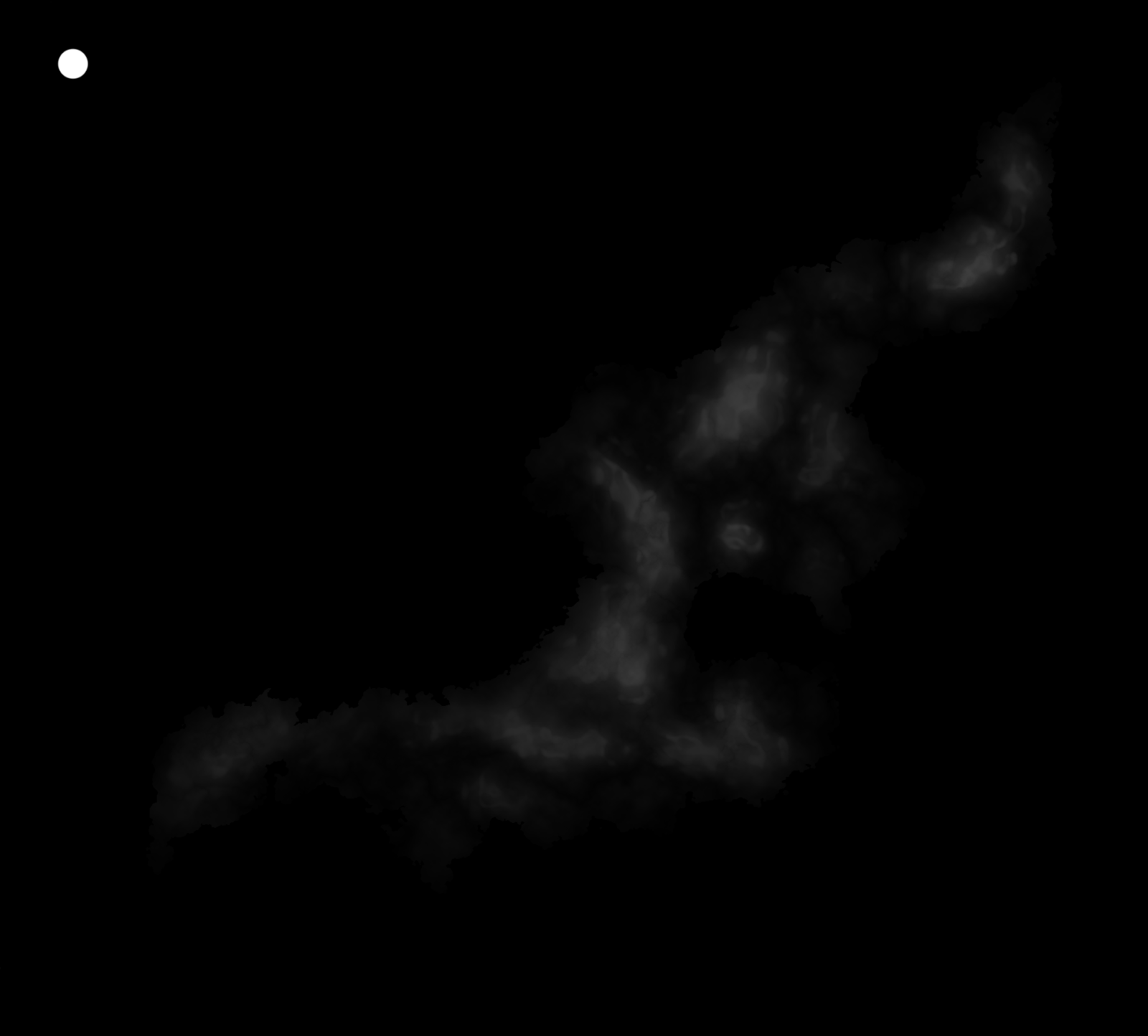
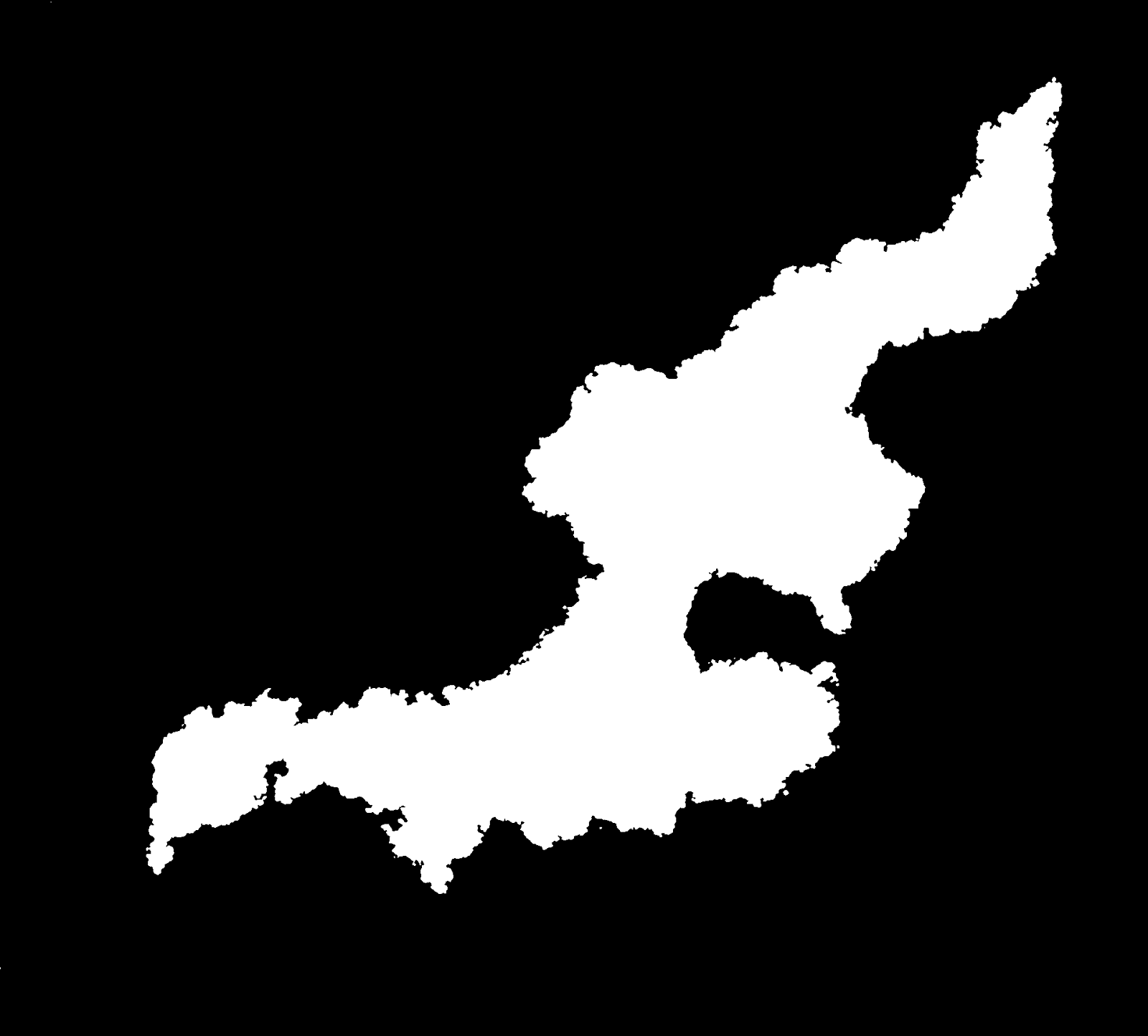
A greyscale PNG height field built using this tutorial,
showing the island of Torvan, southwest of the Great Caldera.
A height field is a specialised map of an area, modelling altitude/elevations.  They are also known as height maps, bump maps, or more formally Digital Elevation Models (DEMs).  Like regular image files, height fields are made up of point-based data, and in fact many height fields use the pixels of regular image formats such as PNG and TIFF to store and display their data, usually in greyscale.  Each pixel on the map represents the elevation at that point; as such, the resolution of the map directly determines the accuracy.

DEMs come in a variety of formats, but for our purposes the most useful are the most easily accessible and editable regular image formats.  I use PNGs for all my height fields.  (Note that Photoshop needs a third party plugin such as SuperPNG for full compatibility with PNG files over 30,000 pixels square.)

White is high, black is low
height field, height map, Torvan, Bruce Heard, World of Calidar, Thorfinn Tait
Do you see the black as the land?  Don't
worry, you'll quickly get used to seeing
white as the high ground, although it
may well seem counterintuitive at first.
In height fields, the highest points are represented in white, with darker and darker shades of grey standing for lower and lower elevations, until the lowest points are shown in black.  For this reason, height fields often show white land on black sea.  If the sea floor is not shown, pure black is sea level, and everything else is land.  It's also possible to show both the sea floor and the land, in which case a certain level of darker grey will represent the point where the sea meets the land at sea level.

Advantages of Height Maps
But what exactly is a height map for?  Why are they useful?  What do they allow us to do?

Well, since they show elevation data, they can be displayed as 3D models.  Because of this, they are often used for terrain in 3D computer games.  In terms of fantasy mapping, height fields potentially allow us to walk around and fly over the worlds we create.
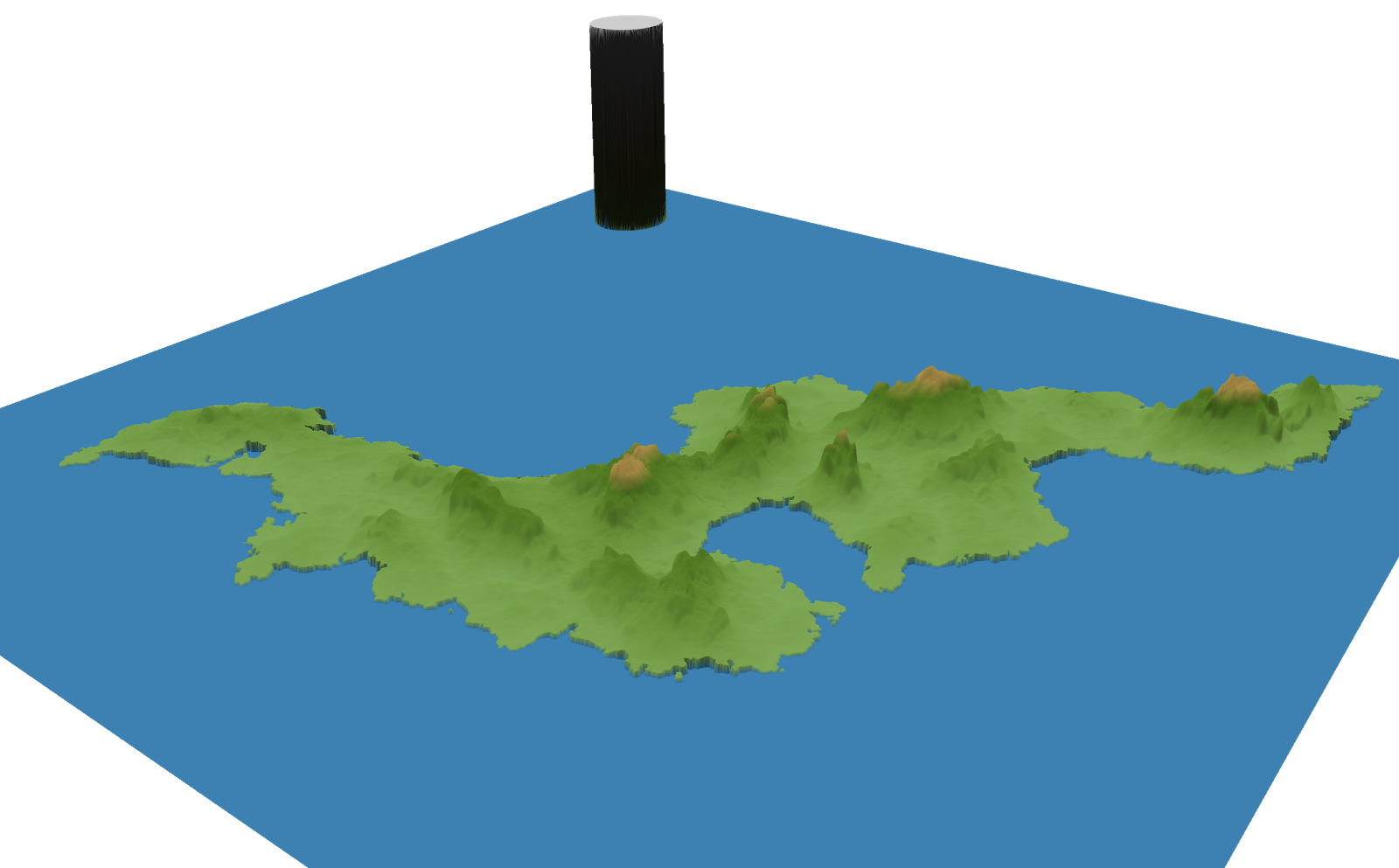
Wilbur's 3D preview of the height field above, using a custom shader.
The dark pillar is the height marker, showing the relative height of
Calidar's highest mountain, at 8,925 m.
But there's an even greater function for cartographers: they facilitate the creation of shaded relief — topographic shading showing the shape and contours of the land.  This can be done using various kinds of shaders in Wilbur, or by rendering the scene in a fully-fledged 3D rendering engine such as Blender.

Finally, the elevation data can be cross-referenced with other data to produce other kinds of shading.  The most accessible form of this is the climate shading of Fractal Terrains, which applies textures to the land based on altitude, temperature and precipitation.

All of these functions will be covered in future articles in this series.  For now, let's get back to the topic of creating out height field form scratch.

Making a Base Height Field in Photoshop
height field, height map, Feorad, Bruce Heard, World of Calidar, Thorfinn Tait, Equirectangular Projection
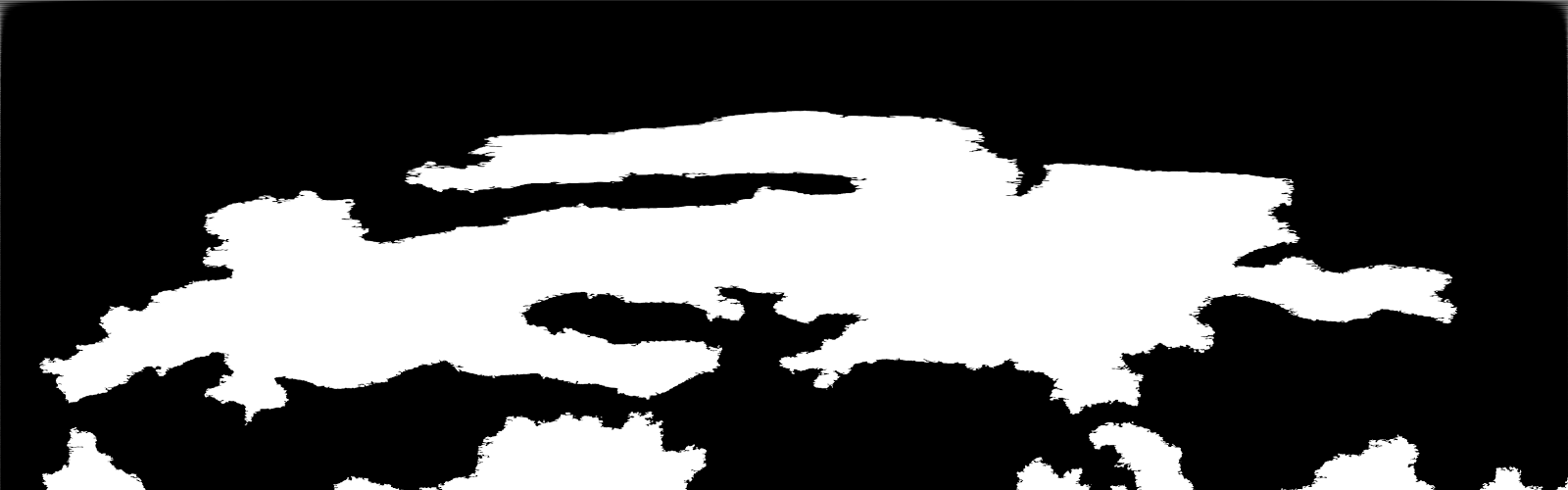
Feorad cropped from the Equirectangular Projection Calidar world map.  You may want to consider reprojecting each continent or region and working on it separately. There is no one perfect projection, but conformal (shape-preserving) projections are desirable for working on height maps and erosion.  At a bare minimum, the poles will need to be done separately from the rest of the world.
Setting Up
Open your finished continental outlines file in Photoshop.  If it needs cropping, reprojecting, or scaling, do that now.  (See my previous articles on Continental Outlines and Map Projections and Scale for more on these topics.)  If it's not already white land on black sea, you'll need to make that change now too.  After changing the colours to black and white, run Image / Adjustments / Threshold / 128 to make sure that the edges are sharp — anti-aliasing can cause problems during erosion, so it's best to work with sharp edges for now.
height field, height map, Feorad, Bruce Heard, World of Calidar, Thorfinn Tait, Lambert Conformal Conic Projection
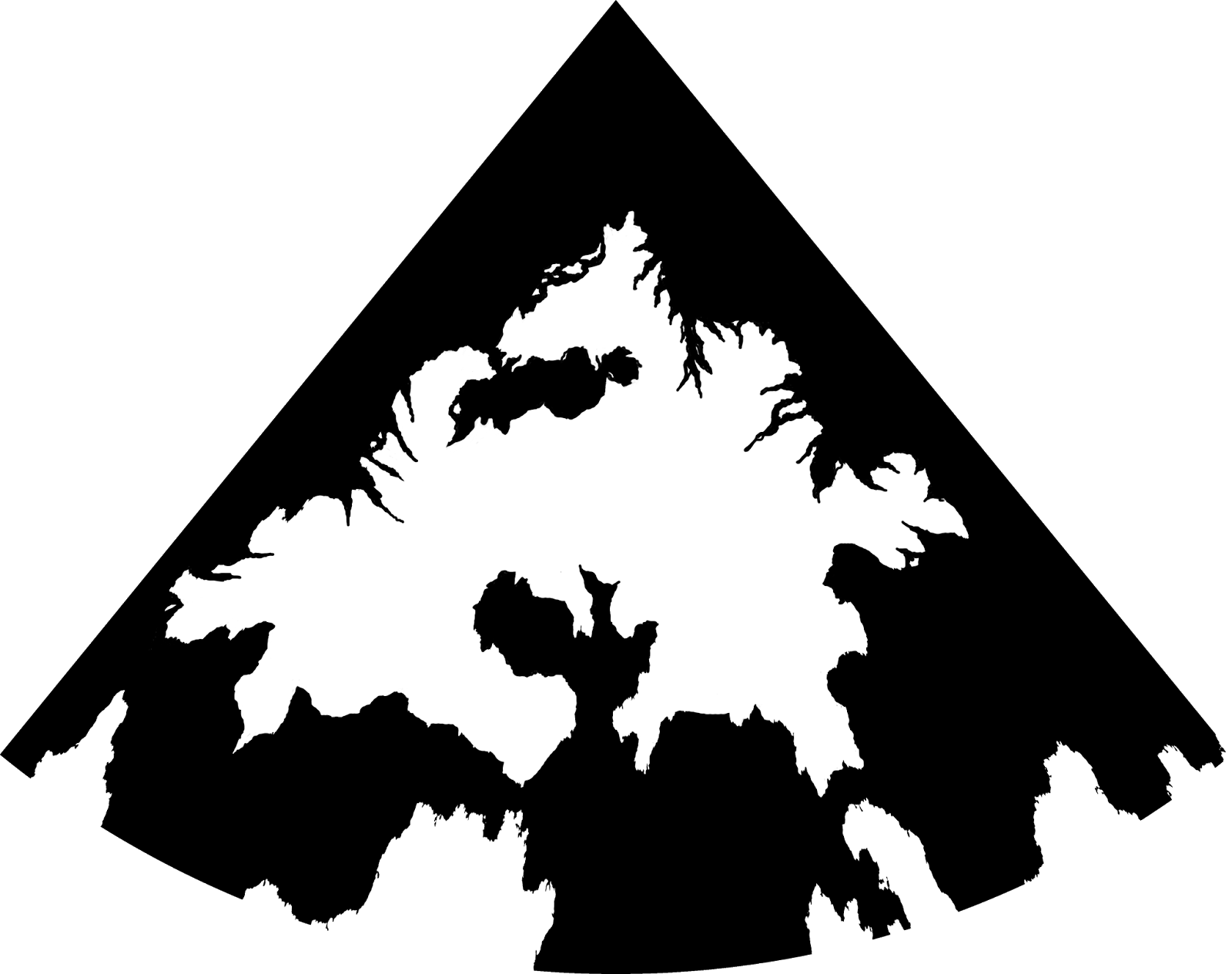
Feorad reprojected onto a conformal projection, Lambert Conformal Conic.  The point at the top is the north pole.  This is revision 4j.  Early on I decided to use a number plus letter versioning notation for Calidar's maps, starting with 1a.  Major changes incur a number increment, while minor changes advance the letter.  The resulting version codes are easier to remember and therefore more meaningful.  As of February 2014, Calidar's latest revision is 4j.  Other worlds have their own codes, so Soltan is on version 2c, and Ghüle is on 2a.  These codes allow me to see what maps and data are concurrent with each map.
Since this is an image map, we don't need any colour: Image / Mode / Greyscale.  You can work in either 8 or 16-bit.  These settings are also in the Image / Mode menu.  8-bit provides 256 shades, while 16-bit ups that to 65,536 shades.  If you're going to be doing erosion anyway, it's not actually all that important, because erosion will smooth over imperfections in the height map anyway.  Using 16-bit files will also take more memory, and entails longer loading and saving times.  Personally, I usually work with 16-bit PNG files despite these disadvantages.

Name the coastline layer with the world/region name and version, and set Opacity: Multiply.  This layer will be one of the top layers of your file.  Multiply means that black will mask out everything below it, while white becomes completely transparent, allowing everything below it to show through.  So you can think of this layer as a sea mask.

Let's create some layer folders to keep things organised.  Do this now for the coastlines layer by selecting the layer and pressing Control/Command G (or choosing Layer / Group Layers in the menu).  Rename the group to Coastlines.
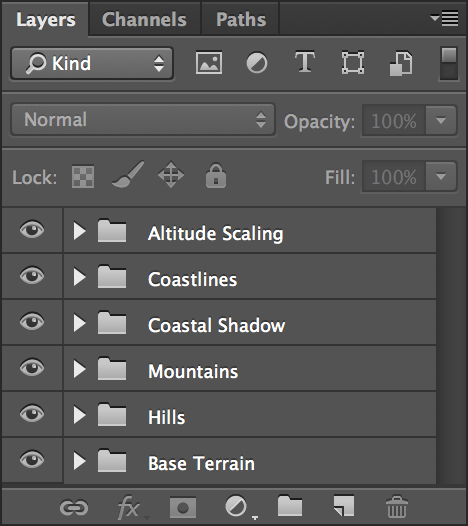
height field, height map, Thorfinn Tait, Adobe PhotoshopGroups may seem unnecessary now, but as you accumulate more adjustment layers they will be a big help.  They also allow you to easily toggle the visibility of each group of layers.

Next we'll set up a shadow around the coast.  These layers will make land fall away more gradually to the sea.  Without them, your land masses will likely be surrounded by tall cliffs.  Hit W to select the Magic Wand Tool, set Tolerance: 0, Anti-alias off, Contiguous off.  Select the coastlines layer and click on the black sea area to select it.  Press Control/Command J to do a Layer Via Copy, then Control/Command G to make a new group for it.  Name it Coastal Shadow, and move it out of the Coastlines folder, to the bottom of the layers panel.  Rename the layer itself Coastal Shadow 1.

Right click on Coastal Shadow 1 and choose Blending Options, then Stroke.  Dial in the following settings: Size: 50, Position: Outside, Blend Mode: MultiplyOpacity: 100%, Fill Type: Gradient, Gradient: Black, White, Reverse: Yes, Style: Shape Burst.

Depending on your map, you may need to tweak this shadow.  You can do this by adjusting the size, and if necessary the opacity.  Come back and experiment with this later, when your height field is almost complete.

For now, click on the eye to Hide the Coastal Shadow folder.  Processing this layer can be processor intensive, and you may find that the file is much more responsive with it off.  Don't forget to turn it on again later, though.

Set up one more folder for future use: click on the folder icon at the bottom of the Layers panel to create a new group.  Rename it Altitude Scaling, and move it to the top, above Coastlines.  We'll come back to Altitude Scaling later.

Terrain Layers
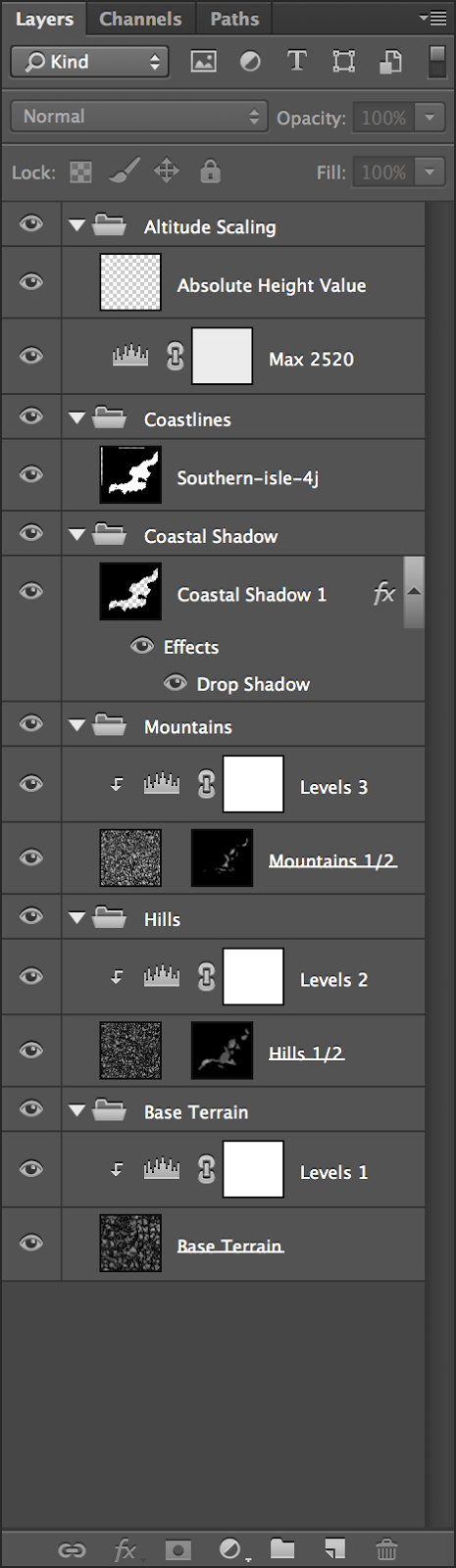
height field, height map, Thorfinn Tait, Adobe PhotoshopNow it's time to start on the terrain itself.  Make three new layers at the bottom of the file, underneath Altitude Scaling.  Name them Mountains, Hills, and Base Terrain, and place them in that order top to bottom.  Create layer groups for each of these layers (Control/Command G), and name them Mountains, Hills and Base Terrain too.

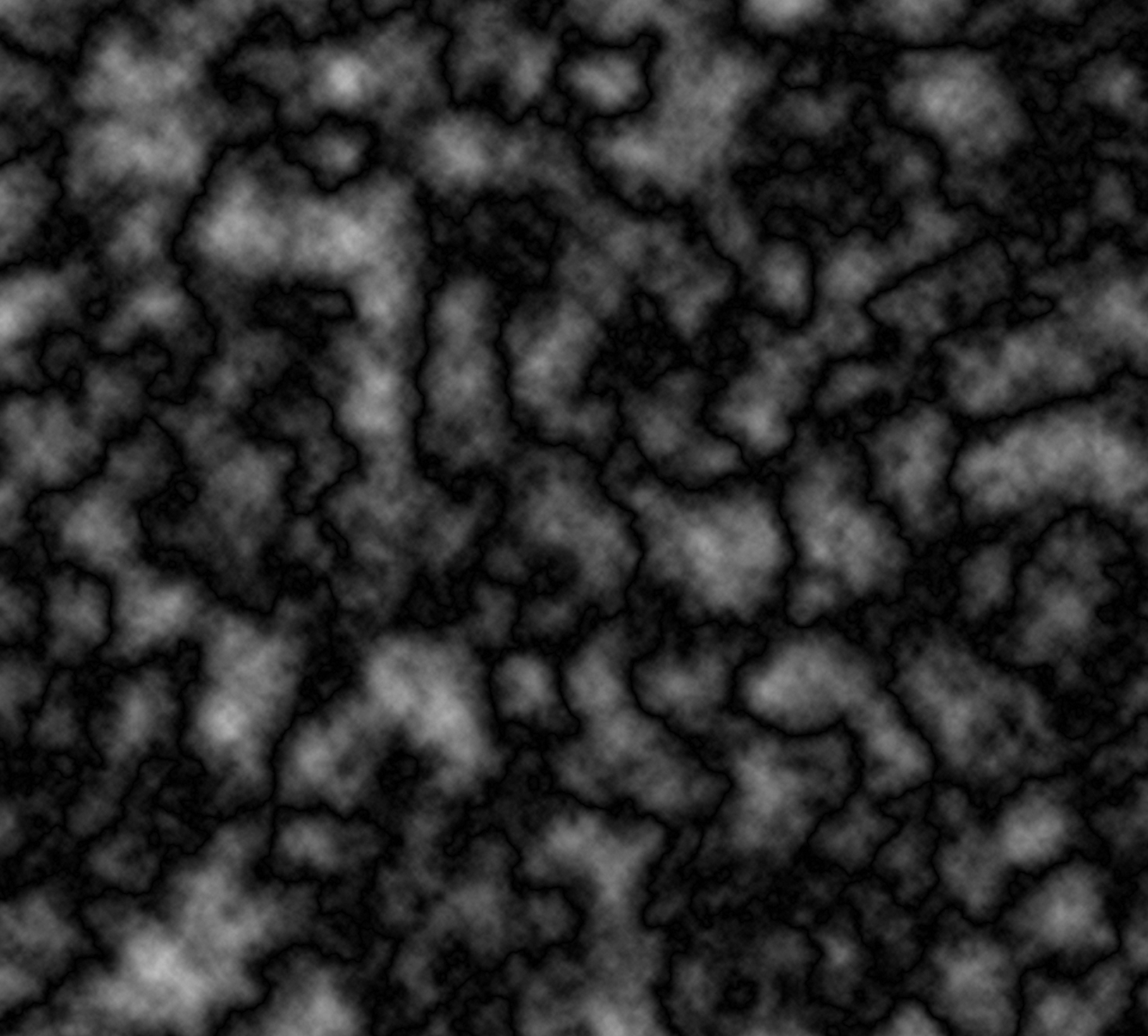
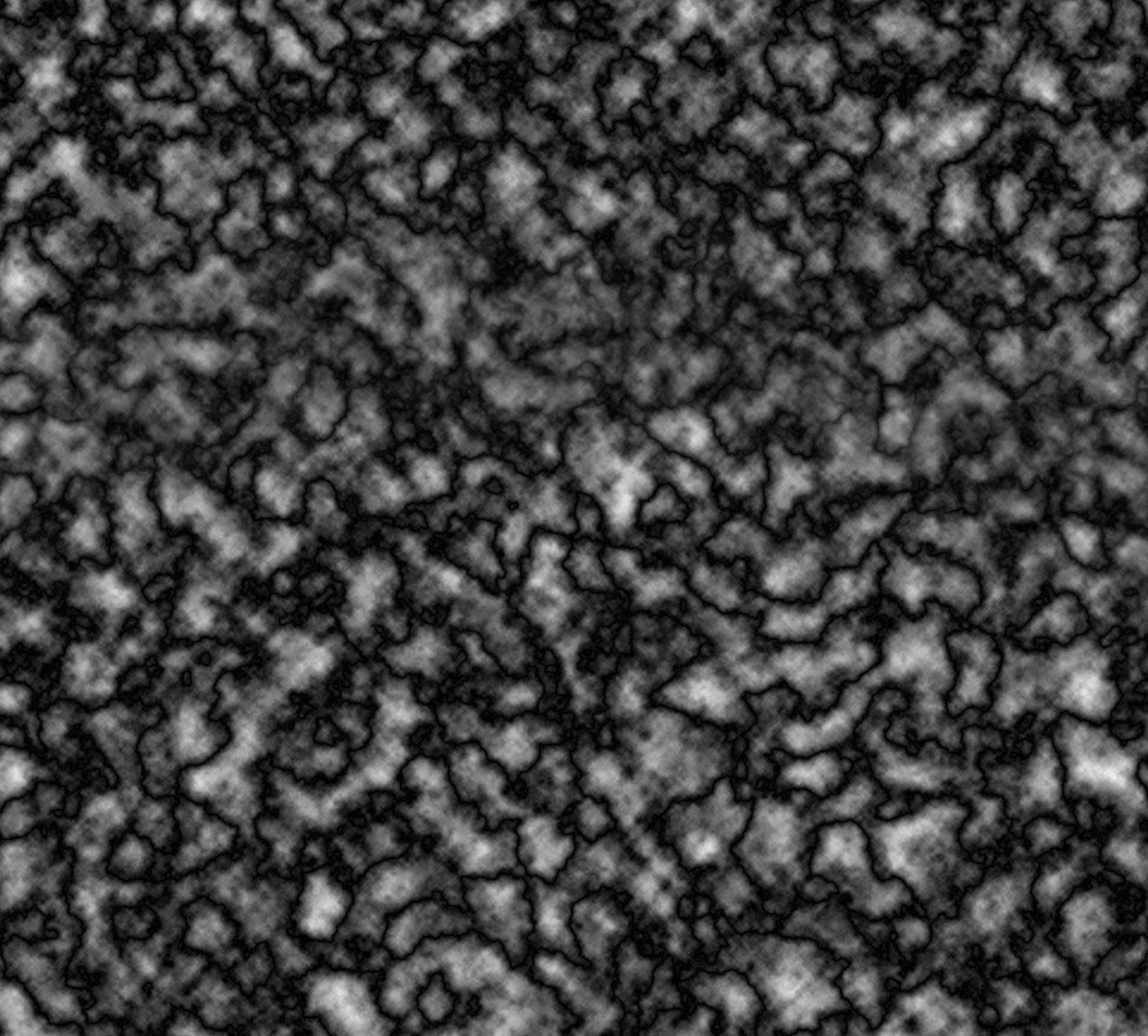
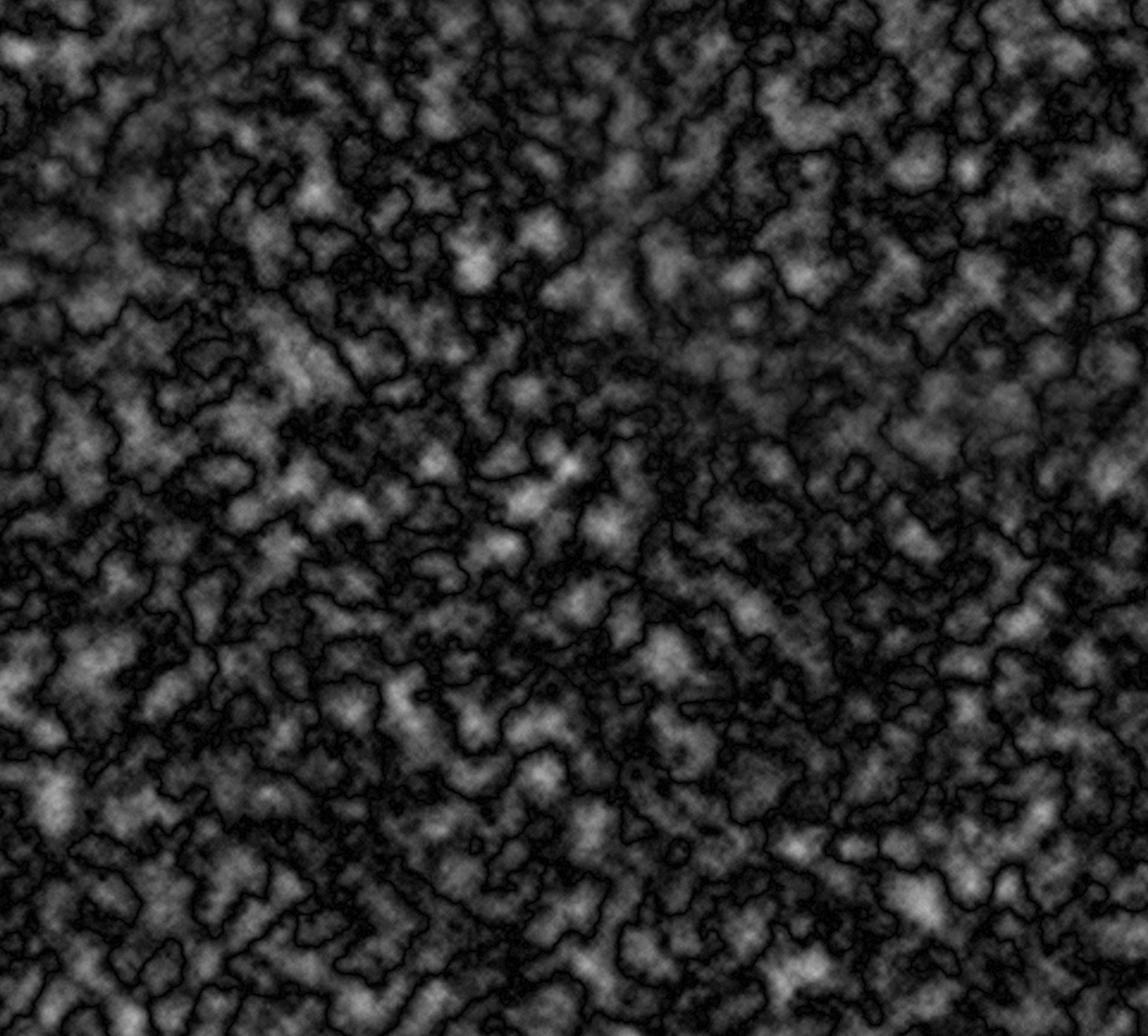
Hit D to reset palette colours to black and white, then Filter / Render / Clouds in all three layers.  For the mountains layer, optionally hold Alt/Option while clicking in the menu to render clouds; this will give higher contrast clouds.

Optionally, you can render the clouds at half size and scale them up, or at double size and scale them down.  Each white cloud will become a peak in your final map, so in this way you can control how big or small the mountains will be.  Your choice will depend on the scale of your image.  For Calidar, I rendered clouds in a separate file that was double the dimensions of the main map, then scaled them down and copy-pasted the layer in.

For all three layers, Filter / Render / Difference Clouds, and repeat until you get a random texture to your liking.  I'm partial to the valley-like channels you get with either one or three renders of difference clouds, so I tend to do just one step of difference clouds for hills and mountains, and either one or three for base terrain.  Experiment and find something you like.  Remember that at any stage you can also invert the clouds to get a different effect.

Add a levels adjustment layer (Layer / New Adjustment Layer / Levels, or click the icon in the Adjustments panel) above each of the three terrain layers.  Right click on each level layer and select Create Clipping Mask (or Alt/Option click the layer) so that the levels only affect the layer immediately below.  Then dial in the following settings:
  • Mountains: 0/1.40/188Output Levels: 175/255
  • Hills: 0/1.80/195Output Levels: 87/191
  • Base Terrain: 0/1.00/240Output Levels: 1/104
Your file is now ready to go.  Time to start shaping the terrain.
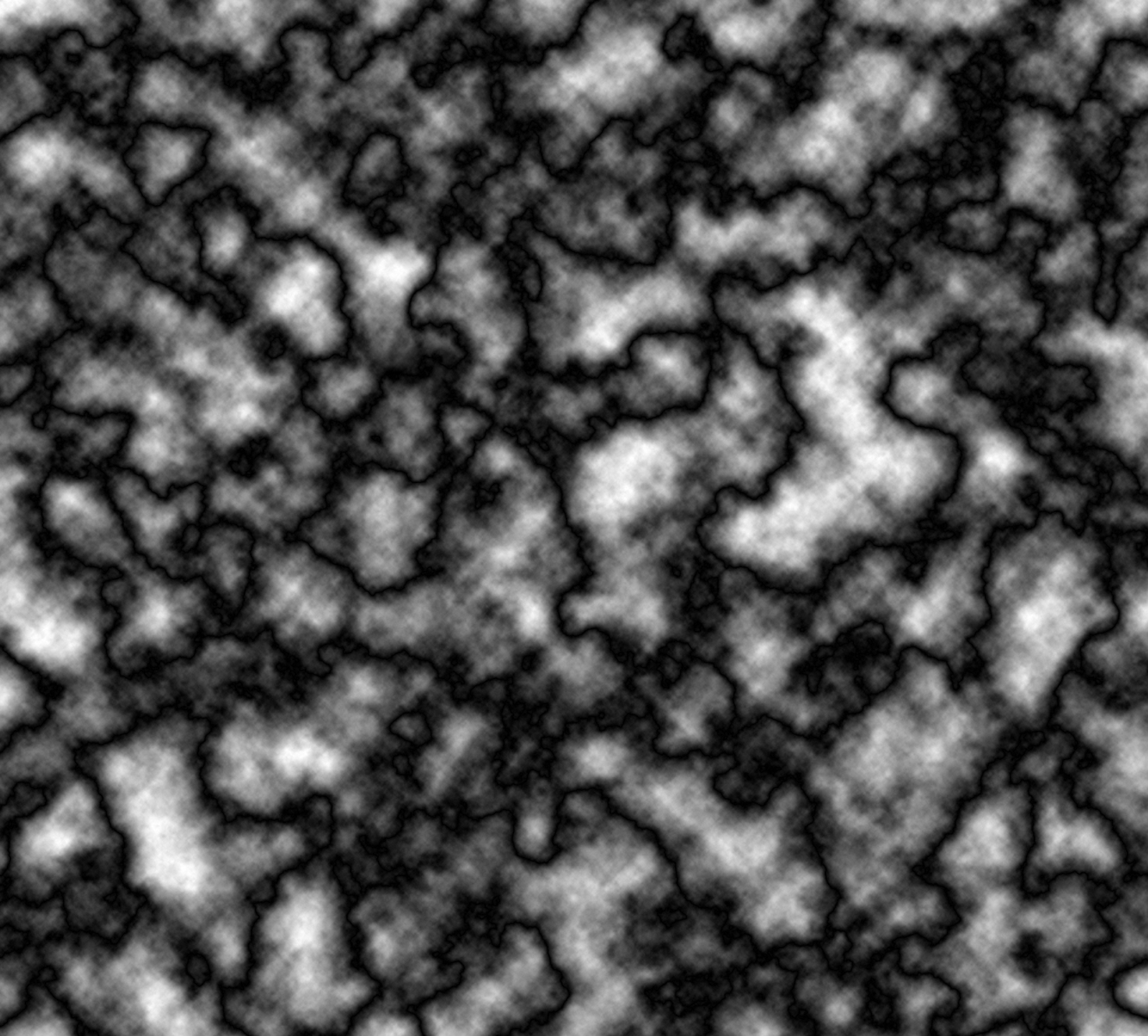
height field, height map, Thorfinn Tait, Adobe Photoshop, render clouds height field, height map, Thorfinn Tait, Adobe Photoshop, render clouds height field, height map, Thorfinn Tait, Adobe Photoshop, render clouds height field, height map, Thorfinn Tait, Adobe Photoshop, render clouds
Difference clouds applied once
High contrast, full resolution
Mountain base layer
Difference clouds applied once
Normal contrast, full resolution
Hills/Base terrain base layer
Difference clouds applied once
High contrast, double resolution
Mountain base layer
Difference clouds applied once
Normal contrast, double resolution
Hills/Base terrain base layer
Sculpting Hills and Mountains
Add layer masks to the Hills and Mountains terrain layers (click on the Add Layer Mask button at the bottom of the Layers panel).  Invert each mask by selecting it and pressing Control/Command I. Your Base Terrain layer will now be the only layer visible.

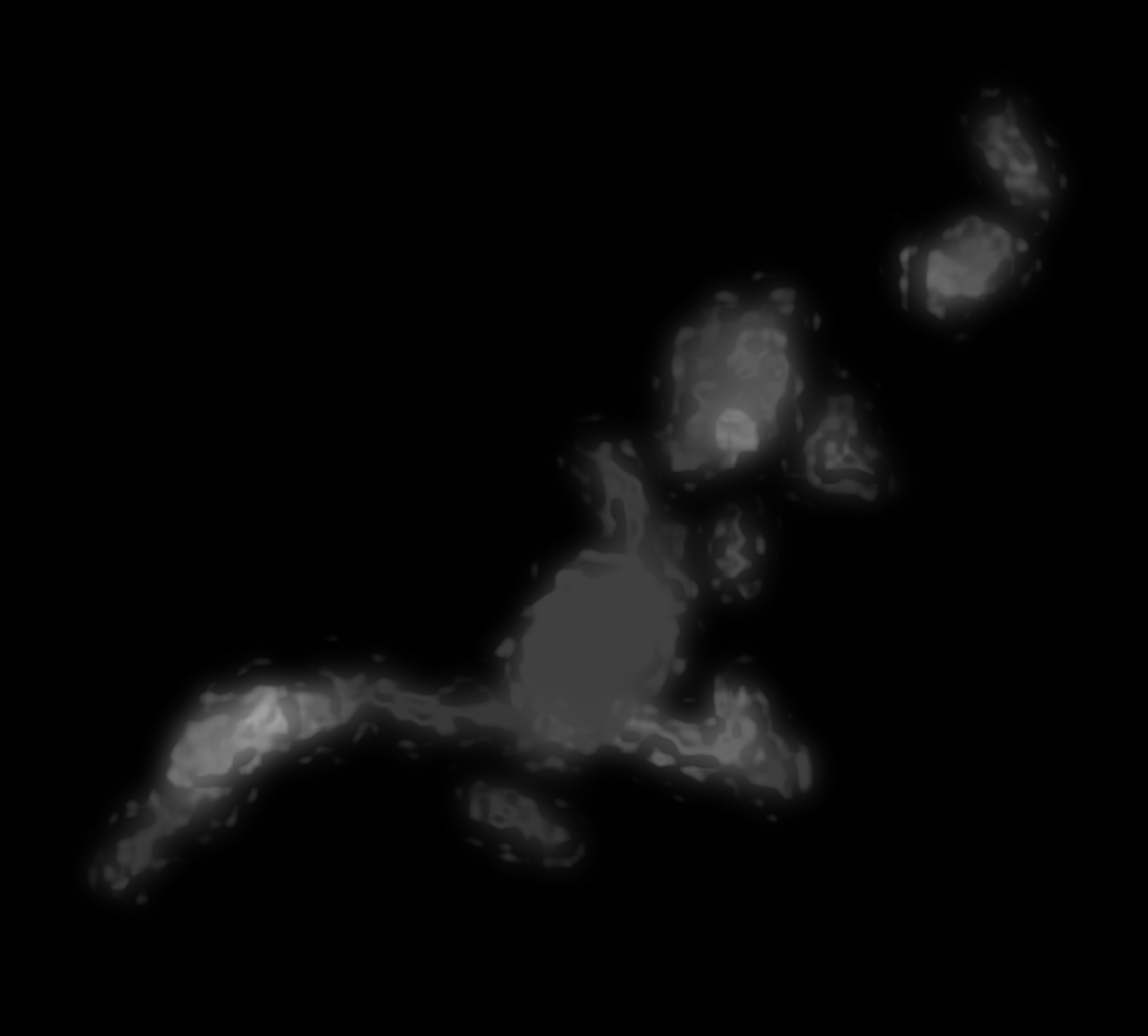
Next, draw in hills and mountains by painting white onto the layer masks of the Hills and Mountains layers.  The layer mask determines where and how much of each layer shows through.  There are a number of different ways to do this:
  • Using a soft, large brush, draw the broad strokes of your mountain ranges and hills in the adjustment layers.  Don't worry about making them random at this point — bold strokes with high opacity and large brushes are fine.
  • Use hard brushes (or an to make more decisive strokes, then select them and use expand selection and feather selection, followed by fill white to soften them up.  Again, don't worry too much about making them random.
  • Use a tablet to sketch your mountain shapes.  Set pressure-sensitivity to opacity, and it should be easy to create convincing ridges and chains.
  • Click on the mask while holding Alt/Option to see the mask, and edit it directly.  The main advantage of doing this is that you can paste directly into the mask, so it's possible to copy and paste other images to create your mask.
  • Use filters to create or edit your shapes.
Regardless of how you create your mask, the last option is a good way of finishing it off.  I use a jiggle filter to roughen and randomise my mountain and hill masks.  Alien Skin's Eye Candy 7 Photoshop plug-in has a "shower door" setting which can do the job, especially with extreme settings.  Try experimenting with other filters to mess up your design.

height field, height map, Thorfinn Tait, Adobe Photoshop, layer mask height field, height map, Thorfinn Tait, Adobe Photoshop, layer mask height field, height map, Thorfinn Tait, Adobe Photoshop, layer mask height field, height map, Thorfinn Tait, Adobe Photoshop, layer mask
Hills mask drawn with soft, low opacity white brush The same hills mask with "shower door" filter applied Mountain mask drawn with soft, low opacity white brush The same mountain mask with "shower door" filter applied
Tweaking
When you are satisfied with your hills and mountains, zoom out and have a look around your map.  Zoom in and look at the details.  Tweak the layer masks here and there where necessary.

If you want to flatten out the base terrain in places, use the eyedropper to pick up a very dark grey (not black!), then paint on a new layer (call it Adjustments) directly above the Base Terrain layer using soft, low opacity brushes.  The same technique can be used to make plateaus on the Hills and Mountains layers: create an Adjustments layer, then pick up a median colour from the area and paint in your flat area, building it up slowly using soft, low opacity brushes.

Be aware that your base height map will more directly affect the final look of your map than any other factor.  In particular, erosion will sculpt your mountains nicely, and it will smooth out minor artefacts and graphical glitches.  But it won't solve major problems that were inherent in the height map to start with.  It's worth taking the time to tweak things at this stage, at both micro and macro levels.  The erosion process takes time, and such tweaks become much harder to do after erosion.

With that said, there have been many times that I didn't discover something was a problem until I finished the erosion process.  As a result, most of Calidar's maps have actually gone through multiple passes of height field building and erosion, with each pass returning to the drawing board to fix various problems with the design before going through erosion once again.

Outputting your Height Map
Save your file, then Layer / Flatten Image and save as a PNG.  I have had problems using "save as copy" files in Wilbur, so although it's a more convenient option, it seems to be more reliable to flatten and then save as a PNG.  Another option is copying merged: Select All with Control/Command A, then Shift Control/Command C to Copy Merged.  Control/Command N to create a new image just right for the clipboard data, and Control/Command V to paste.  Save that image as a PNG file.

Now it's off to Wilbur, for erosion!

Well, actually no — probably not yet.  We will load up Wilbur, but before starting erosion, it's well worth going through one last round of tweaking.

Basin Tweaking
Load your PNG into Wilbur.  Have a look around — Zoom In with Control +, Zoom Out with Control -.  Seeing things shaded using Wilbur's shaders should give you a new perspective on your map.

Now let's see what happens when we use Wilbur's Fill Basins command.  Filling basins is an important part of the erosion process, without which the incise flow command does not function.  Any basins without drainage will be filled up to the level of the lowest drainage point in the surrounding rim.  Unfortunately this means that it is not possible to include basins without drainage in your design.  This includes lakes, which will need to be re-dug after erosion has been completed.  If you want to include lakes or other such depressions completely surrounded by higher terrain, create a channel out of the area to lower terrain, and fill it in again much later after erosion processing.

Select / From Terrain / Height Range: 1 - 999,999 to select only the land.  Filter / Fill / Fill Basins or just hit Control B.  (Note that Wilbur's fill basins command is limited to images of 10,000 pixels square or less.)  Then compare the results with your map in Photoshop.  If it helps, save a copy out and import it in to your height map Photoshop file: File / Save As / PNG Surface (the default — click yes for 16-bit).  This will allow you to more easily see which areas need tweaking.

The areas filled in will be completely flat, which may be undesirable.  Small areas can be ignored, as erosion will take care of them, but with larger areas it may well be worth tweaking the height map design to prevent them from being filled in.  This is done by darkening the edge of the basin to create a channel to a lower area.

Wilbur has a number of different shaders to choose from, available in the Texture menu.  Greyscale Bump Shader is the black and white raw data view which corresponds to the height map design in Photoshop.  But this is not the most human-readable shader.  I find that it's easier to understand what I'm looking at using the Wilbur Shader, which is freely customisable.  Although it's configurable to other settings, it's usually altitude-based.  This kind of shading is known as hypsometric tinting.  It's easy to conflate climate information with this shading, which would be a mistake.  It assigns colours based on altitude alone.  For this reason, many cartographers avoid using a realistic-looking palette.  As long as you bear in mind what the colours mean, there shouldn't be a problem – but bear this issue in mind especially when showing other people your map.

You can save any of Wilbur's shaders as PNG files — just choose PNG Texture in the Save As dialog window.  Note that should you wish to import these into your Photoshop height map design file, you may need to first set your image to colour: Image / Mode / RGB Colour.  Otherwise the imported images will just show up as greyscale.

Altitude Scaling
There's one last thing to do before our height field is finished: scale the relative altitudes on the map.  There are two reasons to do this:
  • To keep all of your maps in scale with each other, and
  • To add some variation to the height of mountain peaks across your map.
For Calidar, Bruce decided on the height of the highest point, and I added a white marker to all of the height fields showing that height.  Altitudes across the map are then lowered using a levels adjustment layer.  This is necessary because any height field loaded into Wilbur is automatically scaled across the maximum range of greyscale values.

The other issue is that my height map design can easily result in a map where the highest peaks are the same throughout a mountain range, or indeed throughout the map.  This just looks wrong.  The solution is in the same levels adjustment layer.

Here's how it works: make a new layer in the Altitude Scaling folder, and name it Absolute Height Value.  Somewhere in the sea, draw a large white dot with a large, hard brush.  This white dot represents the highest altitude on your world.  Next, create a new levels adjustment layer below the Absolute Height Value.  Set the Output Levels at whatever level you want the average highest altitude to be.

You can calculate what number you need to enter by the following formulas:
Absolute Height Value / 255 = altitude per shade 
Average Highest Altitude / altitude per shade = Output Level (highlight)
For example, on Calidar the absolute height is 8925 m.  I would like to set the average highest altitude at around 2500 m.
8925 / 255 = 35
2500 / 35 = 71.4
The Output Level only accepts integers, so we have to round to 71 or 72, but regardless this will be about right.

Now comes the interesting bit: add a Layer Mask to the levels adjustment layer.  Painting black with a soft, low opacity brush on this mask will gradually disable its effects.  The affected areas will have their maximum possible altitude raised.  This is a very powerful effect: you can use it to define the overall vertical shape of mountain ranges, and even to mark out certain peaks as being of certain heights.

Hypsometric Tints in Photoshop
Here's one last tip for working with height maps in Photoshop: you can use a Gradient Map to shade your terrain in exactly the same way as Wilbur's custom shader.  This is invaluable, because it allows you to see a more human-readable version of your map as you edit it.

To set it up, all you have to do is place an Image / Adjustments / Gradient Map beneath your coastlines file.  Note that if you are working in greyscale you will need to change to RGB Colour mode in order to see things in colour.  If this is unfeasible (for example if the image file is rather large, and in 16-bit greyscale), another option in Photoshop CC is to make a new file with the gradient map and use File / Place Linked to insert a linked copy of your height map below it.  The disadvantage is that you won't be able to see corrections as you make them.

You can customise your gradient map however you like; for Calidar I have recreated my custom Wilbur shader in Photoshop, so that I can use the same colours in both programs.

Gradient maps in Photoshop will be covered much more thoroughly in a later article, so I'll leave it at that for now.

Erosion
Once you've finished all this tweaking and are satisfied with your design, save your file one last time, then follow the instructions above under Outputting your Height Map to save your finished height field as a PNG for use in Wilbur.

That's all for this tutorial.  Erosion will appear soon in its own article.

Wednesday, 11 December 2013

World-building: Continental Outlines and Map Projections

Thorf's World-building Techniques: The Making of the World of Calidar
This is the second article in a series.
Click here for the series index.
The first step in creating a whole world is to create a set of continental outlines.  There is good reason to make this the first step: at this point, it's a simple matter to make tweaks and adjustments until you have things looking just the way you want.  The further you progress through your world-building project, the more troublesome this will become, so that later on even a minor tweak may potentially require time-consuming revisions to be made throughout your work.

To sum up: now is the time to try things out, reject what you don't like, keep what you do, and most importantly keep tweaking until you get things just right.

Concepts
Before we get started, there are some things to bear in mind when creating our world map.  First and foremost, the world map is necessarily an extremely small scale map.  Consequently, it cannot show your world in very high detail; nor does it need to.  In many respects, world maps are vague and inaccurate.  They simply lack the kind of resolution needed to display high levels of detail.  In layman's terms, they are just too far zoomed out to see much more than general shapes.

What this means is that your world map is your base map, upon which all other maps are based, but regional and local maps do not have to reflect it 100%.  On the contrary, they should develop and expand upon the foundations contained in the world map, introducing new details too fine to show up on it, as well as revising and enhancing those details that did appear on the world map.

The World of Calidar, First Draft World Map, Equirectangular Projection
+Bruce Heard's very first design for Calidar's world map.  Note 
how the Great Caldera is already present, but joined up with the 
adjacent continents.  This map was drawn directly onto a 2:1 
Equirectangular Projection using Paint.NET.  The resolution 
was 6000 x 3000.
Generally, regional maps will be created by cropping your world map, then resampling to a higher resolution.  Local maps can then be done in the same way, based on regional maps.  With Calidar, I increase resolution by a factor of four for regional maps, then increase by a factor of four again for local maps.

If you deem it necessary, the world map can be rebuilt later to reflect the more detailed regional maps, but this should be considered strictly optional.  There is probably not a lot to be gained by doing so, as the lower resolution of the world map will obscure the added details anyway.  In general, world maps should remain reasonably simple and unburdened with tiny details, to fulfil their main purpose as overview maps.

Software
The World of Calidar, Second Draft World Map, Equirectangular Projection
Bruce's second draft incorporated impact craters throughout the
world, so that there were numerous areas like the Great Caldera.
It also split the Great Caldera from its neighbouring continents.
When it comes to drawing the actual outlines, pretty much any paint software will do - raster or vector.  Personally I like Adobe Illustrator's vectors for this stage, but Adobe Photoshop or an equivalent raster editor is just as effective.  You can go back and forth between raster and vector using auto-trace when necessary.

The reason for this is that at this stage, only the general shapes are important; small details on the coasts can be added later, so there's no need to worry about things looking too regular.
The World of Calidar, Third Draft World Map, Equirectangular Projection
I took a stab at the third draft, tracing Bruce's outlines to Illustrator
vectors.  I went back to the first draft and tried to split things up to
look more earth like.

It's worth noting here briefly the differences between raster and vector art.  Raster graphics, also known as bitmaps, are comprised of arrays of tiny dots known as pixels.  Most people are familiar with these images from photographs, paint programs, and indeed the Internet.  Common formats are PNG, JPG, and GIF.  Photoshop and most other paint programs mostly work with raster images.  Raster images can often be shrunk down without incurring great problems, but enlarging them causes them to become blocky and/or blurry, and is best avoided.  This means that you need to consider what resolution to work in from the start, because you won't be able to increase it later on.

The World of Calidar, Third Draft World Map, Equirectangular Projection
My last attempt.  Note how we worked in a range of colour schemes;
at this stage in the design, working with whatever's easiest for you is fine.
Although these drafts were all ultimately rejected, you can see elements
of the final design slowly appearing.  At this stage, Bruce realised that the
design had wandered away from the central concept of the Great Caldera
being a safe haven, isolated from the Dread Lands around about, and we
went back to the drawing board.
Vector graphics, in contrast, are made up of mathematical descriptions of lines and points.  They don't use pixels at all, although they can be rasterised – i.e. changed into pixel arrays.  Because they are defined using lines and points, it's possible to resize them freely without losing sharpness.  Fonts are probably the most common vector graphics encountered in daily life.  Illustrator works primarily with vector graphics.  Vector formats include SVG, DXG, AI, and many others.

In Calidar’s case, Bruce worked with PNG raster images in Paint.NET.  I then auto-traced those images in Illustrator, turning them into vectors, before making adjustments and exporting to PNG to send back to Bruce.  I prefer vectors for coastlines, but lately I have been using high resolution raster PNG files more and more, because it's easier to roughen coastlines on a raster image.

Projections
Images in this section are courtesy of USGS.  Check their Map Projections Poster for a full description of all the concepts in this section.


Miller Cylindrical Projection
Miller Cylindrical
Planets are three dimensional objects: spheres, or more accurately ellipsoids.  Maps, on the other hand, are flat two dimensional representations.  When you make a two dimensional representation of a three dimensional planet, distortion of some kind is unavoidable.

Lambert Conformal Conic Projection
Lambert Conformal Conic
In order to create a flat map from an ellipsoid, a projection is needed.  There are various kinds of projection, depending on how coordinates on the ellipsoid are mapped to coordinates on the map.  The three basic types are cylindrical, conic, and azimuthal.  There are other types; for example, pseudocylindrical projections are commonly used for presenting world maps in modern atlases.

Stereographic Projection
Stereographic (Azimuthal)
It’s important to understand that no projection can accurately represent every property of an ellipsoid.  All projections introduce distortion of some kind.  In fact, each projection can generally only preserve one or two properties.  This is what guides the choice of projection for each map.

Properties that can be preserved include:

• Shape
• Area
• Distance
• Direction
• Bearing
• Scale

Of these, shape, area and distance are probably the most important, and projections that preserve them are the most well-known and widely used.

Projections preserving shape are known as Conformal Projections.  Examples include Mercator, Stereographic, and Lambert Conformal Conic.
Albers Equal Area Projection
Albers Equal Area

Those which preserve area are called Equal Area Projections.  Examples include Gall-Peters, Albers Equal Area, Lambert Azimuthal Equal Area, as well as Mollweide and Hammer.


Sinusoidal Projection
Sinusoidal
Equidistant is the name for distance-preserving projections.  Examples include Equirectangular, Azimuthal Equidistant, and Sinusoidal.


Robinson Projection
Robinson
A fourth kind of projection that sees a lot of use is the category of Compromise Projections.  These projections don’t preserve any property perfectly, instead aiming to strike a balance between distortions in multiple properties.  Examples include Robinson, Van der Grinten, Miller, Winkel Tripel, and Dymaxion.

Mercator Projection
Normal Aspect Mercator
Transverse Mercator Projection
Transverse Aspect Mercator
Finally, another important property of projections is their aspect.  There are three aspects: normal, transverse, and oblique.  Aspect refers to the orientation of the base plane of the projection to the ellipsoid.  Normal aspect means that it is aligned with the “normal” view of the planet.  In the case of a cylindrical projection, it’s easy to imagine the earth inside a vertical tube, with the tube touching the cylinder at the equator.  Transverse means that the cylinder is horizontal, touching a meridian instead of the equator.  Transverse projections are therefor at a 90º angle to normal projections.  Oblique means that it is angled somewhere between normal and transverse, which means that the cylinder doesn’t correspond to any parallel or meridian.
Oblique Mercator Projection
Oblique Aspect Mercator

Further reading on projections:
Map projections at Wikipedia
• Map Projections Poster at USGS
How to choose a projection at Hunter College (highly recommended!)
• G.Projector User's Guide: Projection List

Advantages of Projections
The World of Calidar, First Draft World Map, Google Earth Orthographic Projection
Bruce's original world map design as an
image overlay in Google Earth
If you don’t care about projections, you’re good to go - draw your world map in whatever shape you like, and stick with it.  Many fantasy cartographers do just this, and produce stunning works of art without ever worrying about what projection the map is in.  There’s nothing wrong with this approach – we are dealing with fantasy, after all.  All fantasy cartographers sacrifice some aspect or other in order to produce maps in a reasonably timely fashion, and I would hate to force my style on someone else just for the sake of “accuracy”.

With that said, there are quite a few advantages to using projections in your maps, should you wish to do so.  For example, you will be able to:

• Take advantage of reprojection techniques to design good-looking polar areas, avoiding distortion and spikiness.
• Produce multiple versions of your world map, choosing a projection to match the theme of each.
The World of Calidar, Icosahedral Net
Icosahedral net made in Fractal Terrains
using an Equirectangular height map
• Choose suitable projections to show each region of your world in its “true” shape.
• Take advantage of the properties of each projection in your maps.
• Place your map on a 3D model such as Google Earth.
• Create icosahedral maps or interrupted (segmented) projection maps to make paper globes.
• Make animated spinning planets using Photoshop’s 3D, or a 3D rendering program such as Bryce.
• Render impressive orbital views and space scenes.

Render of the World of Calidar with one of its moons, Kragdûr
Orbital view rendered in Photoshop using
Equirectangular planet and moon maps
Some of these things are possible to do without using projections, but results will vary depending on the characteristics of your map.  And if you’re anything like me, the “inaccuracy” of such an approach will likely bother you, and take away from the final maps.

For Calidar, we decided from the very start to work with projections.  I had long wanted to do so with my work on Mystara, but was held back by the choices of Mystara’s original cartographers back in the 1980s.  This is not a criticism - on the contrary, I have the utmost respect for all of the cartographers who worked for TSR, and they have undoubtedly influenced me more than anyone else.  Of course, TSR's cartographers did not have access to the kinds of computers and software that we do today, so their job was that much harder.

Working with Projections
Before computers became so ubiquitous as they are today, cartographers were forced to make difficult calculations, or to use complex tables to convert maps from one projection to another.  These days, however, there is freeware software to do this for us.

The most useful I have found is NASA’s G.Projector.  There is also QGIS, but it’s much more complicated and harder to use.

If you want to take full advantage of projections, there are various commercial software options to choose from too.  I use Manifold, which is one of the more affordable programs.  I would love to be using Avenza Systems Inc.’s MAPublisher and Geographic Imager, which enable projection and other GIS functions directly within Illustrator and Photoshop respectively, but both are well out of my price range.

Whatever software you choose, you will need to learn how to load images into it, georeference them if necessary, change projections, and then export back to your usual image format.

Projections and the World Map
For various reasons, the best projection to work with for your world map is the Equirectangular Projection.  Also known as Geographic Projection, Plate Carrée, or Latitude/Longitude Projection, it is nothing more than a simple grid of latitude and longitude.  This inherent simplicity makes it a relatively easy projection to work with.  But it’s important to know its strengths and shortcomings.

Equirectangular Projection
+ Simple grid of latitude by longitude, giving a 2:1 ratio image.
+ The required projection for Google Earth image overlays and texturing 3D models.
+ Up is always north, left is always west, etc.
+ Low north-south distortion of shapes.
+ North-south distances are accurate throughout the map.
- High east-west distortion of shapes, progressively increasing as you move away from the equator.
- Poles are stretched across the entire length of the map, making the polar regions difficult to work with.
- East-west distances are accurate only along the equator, and difficult to measure accurately elsewhere.

The World of Calidar, First Draft North Pole, Google Earth Orthographic ProjectionThe World of Calidar, First Draft South Pole, Google Earth Orthographic Projection
Google Earth image overlays showing the original designs for Calidar's north and south poles.
The results were somewhat less than stellar.  Due to this distortion, we all but abandoned polar 
landmasses in the second draft.  It wasn't until the fourth draft that we tackled the problem, 
with the help of G.Projector and the Oblique Equirectangular Projection.

In terms of creating continental outlines, the main problem we have to deal with is the distortion of the polar areas.  This is actually easy to solve, and you don’t even need to use a different projection to do so.  Think about it for a moment: in an Equirectangular Projection, the equator area is relatively distortion-free.  But why does the map have to be centred on the equator?  In fact, it doesn’t.  When you centre the map on a different parallel (or meridian!), it’s known as an Oblique Projection.  What this means is that we can reproject the map to an Oblique Equirectangular Projection, so that the poles are relatively undistorted.

The same is true of any areas which need to be very specific shapes.  For example, with Calidar, there are various impact craters around the world.  All of these needed to be circular.  It’s possible to do this simply by centring the Oblique Projection on the area of interest.

The important thing to bear in mind here is that the goal is to create a single base map.  So everything that is done in a different projection must be reprojected back to the original projection, and then used as a guide to update the base map.

Using these techniques, it’s possible to build up a world which looks exactly as you want it to look.

The World of Calidar, Fourth Draft World Map, Equirectangular Projection
FIXING CALIDAR'S GREAT CALDERA
This is the fourth draft of Calidar, designed by Bruce Heard.
It's a complete rethink of the map, giving the Great Caldera
the geographical isolation that it needed.  However, placing the
circular Great Caldera as is on this Equirectangular map did
not produce a perfect circle as it appeared to be.
The Great Caldera, World of Calidar, Fourth Draft World Map, Stereographic Projection
Here's a Stereographic Projection of the same map.  You can see
how distorted the Great Caldera actually was.  Even though it looked
fine on the Equirectangular map, this is how it would have looked on
the globe.
 An Example Using G.Projector
The World of Calidar, Fourth Draft World Map, Oblique Equirectangular Projection
The first step for fixing it was to load the map into G.Projector with
default settings.  Next, I changed the projection to Equirectangular
Oblique.  45ºN is about right, but the Caldera is slightly offset to
the east, so we also changed the map to 5ºE.  Note that the whole
central area of the map is essentially distortion free, so the longitude
nudge was not strictly necessary.

The World of Calidar, Fourth Draft World Map, Oblique Equirectangular Projection
I took the map into Photoshop and pasted in the circular Great
Caldera.  A couple of adjustments and it was done.  The next
step was to load it up in G.Projector again, which meant changing
the preferences to accept our map as Equirectangular Oblique,
centred on 5ºE, standard parallel 45ºN.  When loaded, the map
appeared very strange at first.  You have to manually change it
to Equirectangular Oblique, at which point it displays correctly.
The World of Calidar, Fourth Draft World Map, Equirectangular Projection
I entered latitude -45º to reverse the change we made before,
producing this map.  As you can see, it's a little messy, so we
used this as a guide to update the previous base map.
When you start G.Projector, it immediately asks you for a map.  By default, it expects this map to be in the Equirectangular Projection.  After you point it at your world map file, it then asks what coordinates the edges of the map show.  G.Projector is a bit limited when it comes to loading maps other than Equirectangular full world maps, so my advice is to always work with full world maps.  In that case, the default settings of 90ºN, 90ºS, 180ºW, 180ºE are perfect.

You can now reproject the map in any way you like.  G.Projector's list of projections is quite extensive.  Experiment and see what each projection looks like.

For building the base map, the projection we're interested in is Equirectangular Oblique.  Using the latitude and longitude controls, you can specify precisely where the map is centred.  For example, the default is 45º.  This centres the map on an oblique line beginning at 45ºN 0ºE, circling round to 45ºS. As a general rule, everything along the centre of the map (where the equator would be on a normal Equirectangular Projection) is free from distortion.  So if you want to draw a specific shape of terrain at 60ºN 35ºW, you should centre the map there.

Setting the latitude to 90º centres the map on the prime meridian.  You can choose a different meridian by changing the longitude setting.  This is great for working on the polar areas.  (Technically this is a Transverse Equirectangular Projection rather than an Oblique one, but the difference is purely terminology.)

Output maps centred on as many regions as you need, but be sure to note the settings used in the filename for each map.  You'll need this information later to reproject the map back to the base Equirectangular map.

Now use whatever image editing program you like to edit your map, only changing the central area of each map.

Loading non-Equirectangular maps, or even Equirectangular maps centred on a location other than 0ºN 0ºE, is a little clunky.  You will need to go into G.Projector's preferences and input the data there.  After you have changed these settings, load in your map, and you should be able to put it back to the original projection.

The final step is to use your adjusted map to update your base map.

G.Projector is limited to images around 10,000 or less pixels long, so you can't work with super high resolution images.

Also note that leaving the graticule (the grid lines) turned on when exporting the map can be useful, but when loading the map back in the lines can become very confusing.

I'm sure this has been pretty confusing.  Please give it a try for yourself, and see how it works.  If you get stuck, post in the comments below and I will see if I can help you out.


Roughen outlines
So you have your world looking just as you want it.  You've checked and rechecked using different projections.  You've set it as an image overlay in Google Earth and navigated around your world as a globe.

Once you're sure that it's all done, the next stage is to roughen up the continental outlines.  Mike Summers wrote a wonderful tutorial for this over at the Cartographer's Guild, or you can also see it on his blog.  I don't want to steal Mike's thunder, so I will leave the details for you to discover there.  I have used Mike's technique for all of Calidar's maps.

I like to roughen again at each level of detail, so I do it first at world level, then again at regional/continental level (4 times the resolution), and finally once more at local level (another 4 times the resolution).

And that brings us to the end of the continental outlines section.  If you managed to read this far, thanks!  There is actually one topic which I left out: scale.  I have decided that it deserves a post all of its own, so I will post it at a later date.

Please feel free to post any questions, comments, or corrections in the comments below.